Overview
With Bring Your Own Key (BYOK), Mem0 runs the LLM calls that turn your messages into memories on a model you choose, using your own API key. Mem0 sends your message text to that provider under your account, and your provider bills you directly. If your key stops working, Mem0 doesn’t switch to its own key. The add fails and shows why. Embeddings, search and reranking still run on Mem0.Where to find it
BYOK is set per organization, in Settings → BYOK in the Mem0 dashboard. Only organization owners see this tab. One key covers every project in the organization.Organizations created through the Vercel Marketplace are managed from Vercel and can’t use BYOK.
Supported providers
For Azure OpenAI, use your resource’s endpoint from the Azure portal, such as
https://your-resource.openai.azure.com/.
Set up BYOK
1
Open the BYOK tab
Go to Settings → BYOK in the dashboard.
2
Choose a provider
Pick OpenAI, Anthropic, OpenRouter or Azure OpenAI from the Provider list.
3
Choose a model
The Model list shows the models we tested, with a Recommended tag on our pick for that provider. Under the model, the tab shows its estimated cost per 1,000 adds on your provider account.To use a model that isn’t in the list, choose Other model ID and type the model ID exactly as your provider names it. For Azure OpenAI, type your deployment name in Deployment / Model.
4
Paste your API key
Paste your key into API key. For Azure OpenAI, also fill in Endpoint URL.
5
Save the key
Click Save key. Mem0 sends a short test request to your provider with your key and model, then saves them. When the test passes, the top of the tab shows your provider and model, such as Running on OpenAI · gpt-6-luna.
Errors and rate limits
When you save a key
If the test request finds one of these problems, Mem0 doesn’t save the key:
Some problems don’t stop the save, because they can be fixed on your provider’s side without changing anything in Mem0. In that case Mem0 saves the key and shows a warning at the top of the tab that names your provider. For example, with an OpenAI key:
- No credit: “Key saved, but OpenAI says this account has no credit. Adds will fail until you add credit with OpenAI.”
- Rate limited: “Key saved, but OpenAI is rate limiting requests right now. Adds may fail until the limit resets.”
When an add fails
Adds run in the background. Each add returns anevent_id, and you can follow it with Get Event. When an add fails for one of the reasons below, the event ends as FAILED and its error field says why:
In the dashboard, open the failed add on the Requests page to see the same reason. Mem0 doesn’t retry these adds, so send them again after you fix the cause.
Rate limits and temporary errors
When your provider rate limits a request, times out or returns a server error, Mem0 retries it automatically, so the add can take longer to finish. If this happens often, raise the rate limits on your provider account.Choose a model
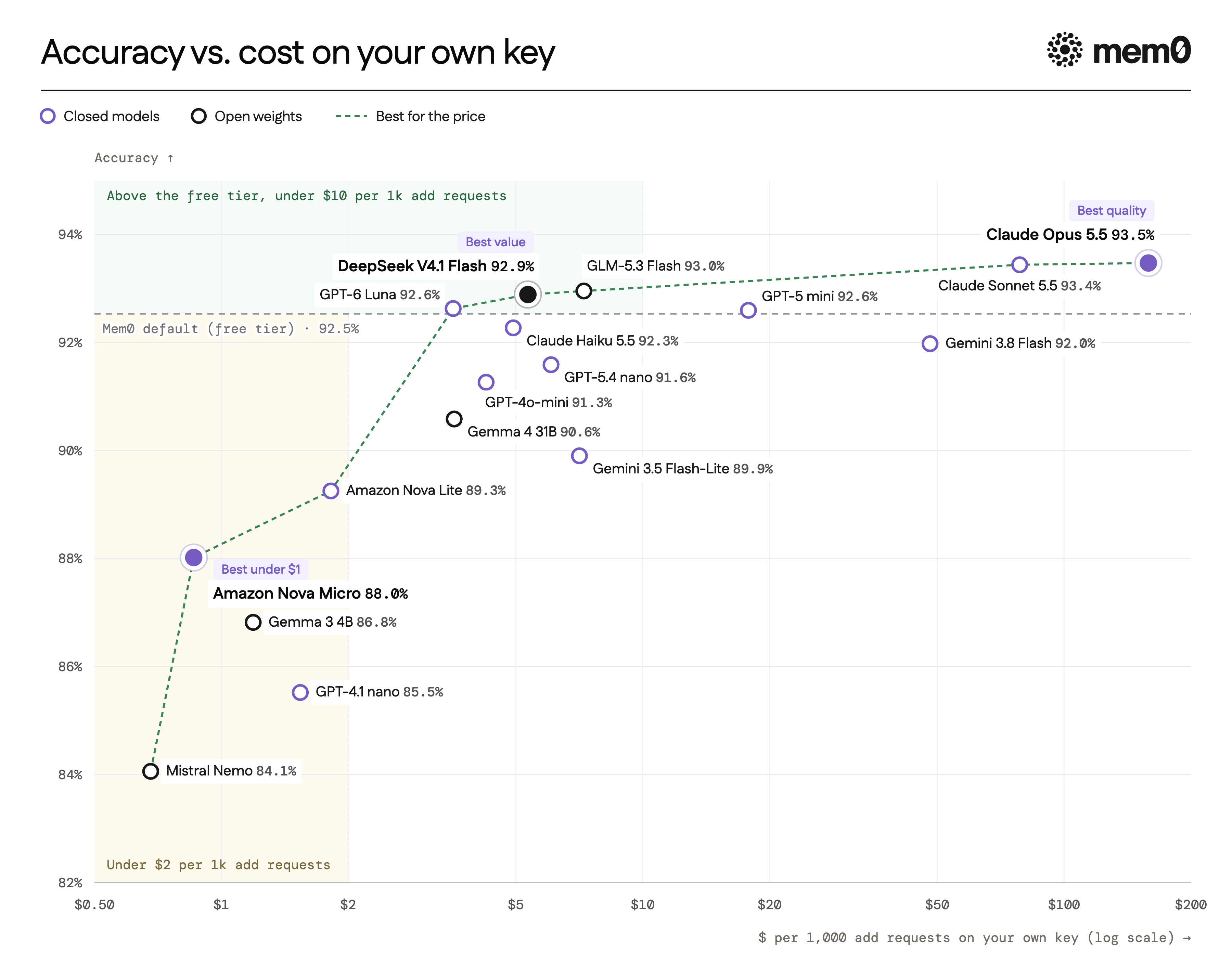
Three things decide which model fits:- Accuracy: how well the memories a model writes answer questions later.
- Cost: what your provider charges for the calls behind one add.
- Latency: how long it takes from sending an add until its memories show up in search.
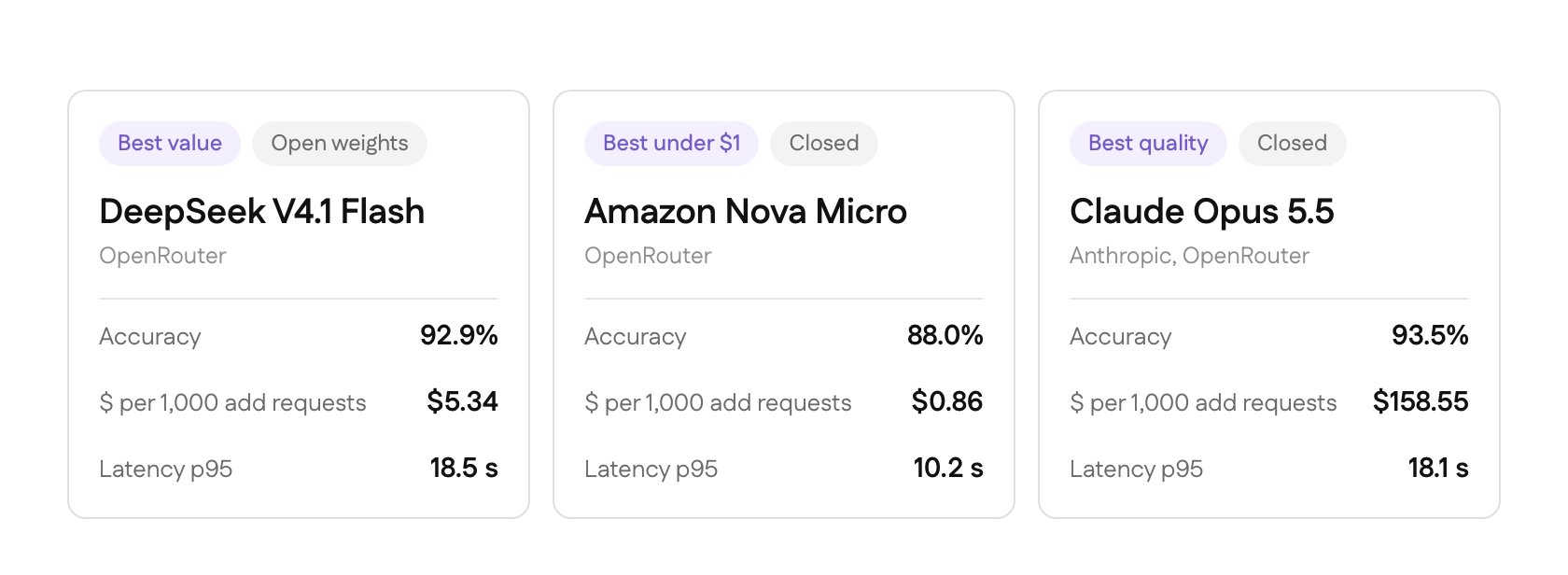
The latency above is for adds, which run asynchronously: the add call returns an event ID right away, and the memories become searchable once processing finishes. Search doesn’t use your model, and its server-side latency is about 270 ms at p50 and 640 ms at p95.